How to Enable Android 16 Desktop Mode on Pixel: A Step-by-Step Guide
Use your phone as a laptop replacement

Last year, as a Christmas present to myself, I bought a monitor and a docking hub so I could hook my phone up to a bigger screen at the office. Obviously, I already have a work computer, but I do my best not to do anything personal on that machine. This setup is strictly for my downtime—usually before/after work, or during lunch.
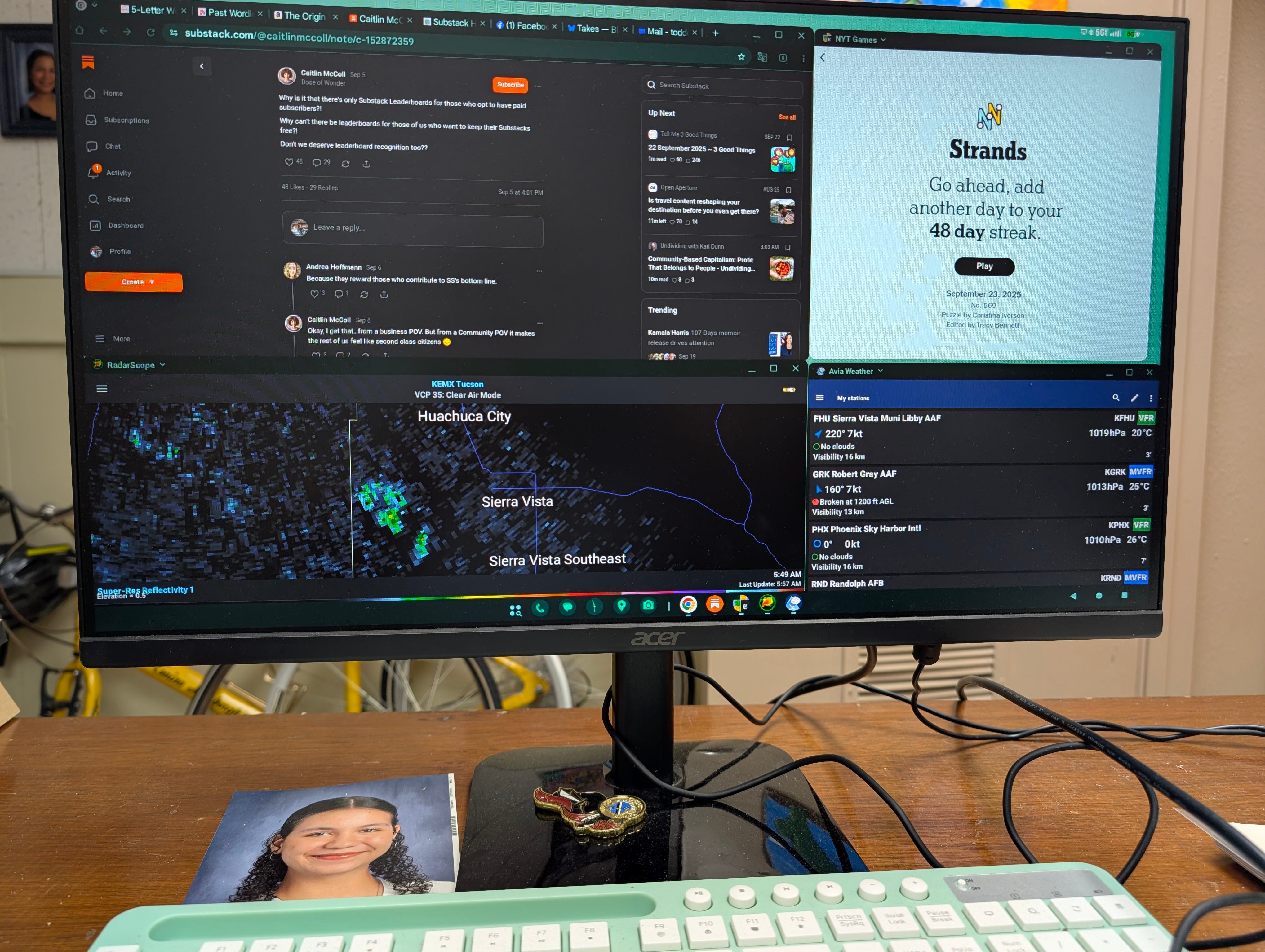
The sad thing is, until very recently, it wasn’t a good solution at all. Sure, you could mirror your phone screen on the monitor, but if you wanted anything approaching a true desktop experience, you had to enable some hidden settings and download a couple of (mostly buggy) apps just to simulate a taskbar.
Needless to say, I rarely used it.
The Android 16 Update Changed Everything
The launch of Android 16 (specifically, the QPR1 Beta 2 and the stable September 2025 update) has transformed this feature. Google is officially calling this “Desktop Windowing” or “Enhanced Connected Displays” and it’s built right into the OS.
A couple of caveats still apply:
You still need a Pixel 8 or later (as these models support the necessary DisplayPort Alt Mode via USB-C).
You still have to dive into Developer Options to enable the core feature, but it’s now simple enough that even this old guy was able to do it without too much frustration:
Go to Settings and tap on About phone.
Scroll down and tap the Build number 7 times. (You’re now a developer! Don’t let it go to your head.)
Go back to Settings and select System.
Tap on Developer options.
Scroll down to the bottom and turn on the toggle switch next to Enable desktop experience features.
You will be prompted to restart your smartphone. Hit Reboot in the pop-up box.
The cool thing is, once those steps are complete, it’s pretty much automatic. You plug in your phone, and a whole separate desktop (fully capable of multi-window display) pops up on your monitor. It has a real taskbar where you can open Chrome or any of your phone apps. Instead of pecking around on your phone, you get to type on a real keyboard and move the cursor with a real mouse.
Plus, you can still use your phone’s screen independently. It becomes a separate, second display! (I took the picture above with my phone still plugged into the USB-C hub cable).
A Couple of Quirks (Google Still Has Homework)
It’s a huge step forward, but it is still a little buggy, and there are a couple of quirks to work around.
The Case of the Missing Audio: Unless you have speakers or headphones plugged directly into your hub, you won’t initially hear any sound on your external monitor setup. The sound output defaults to the monitor/hub connection.
The relatively easy fix requires a quick phone adjustment:
You have to go into the phone settings (on your phone).
Click on “Sound and Vibration”.
Under “Audio will play on”, choose “This phone”.
Once you do this, sound will play from your phone’s speakers or seamlessly switch to your paired Bluetooth headphones.
The Stubborn App Problem: For some services (Substack, Facebook, Instagram, etc.), even if you start out in the Chrome browser, certain actions (like trying to leave a comment) force the dedicated app to open instead of letting you continue in the browser.
I’m sure there’s probably a global setting I can toggle somewhere, but for now, my workaround is simple: Right-click and “Open in new tab.” This seems to work most of the time. It really wouldn’t even be a problem if the apps all worked properly on the big monitor with the keyboard and mouse. Hopefully, that’s something Google will polish in later releases as this feature matures.
Well, I think that should just about wrap up my deep dive into this tech. This isn’t a “tech” newsletter after all! But hopefully, you might still find this useful.
So, will you enable desktop mode and see if your phone can replace your laptop for light computing?
Let me know if you do!